Streaming has changed the way we watch TV, and few devices have made that easier than Amazon’s Fire TV Stick. Compact, fast, and affordable, the Firestick gives users access to thousands of apps, movies, and shows in seconds. At the heart of this experience is the Firestick remote—a simple yet powerful tool that turns any television into a smart entertainment hub.
What Is the Firestick Remote?
The Firestick remote is a small, wireless controller designed to operate the Amazon Fire TV Stick and Fire TV Cube. It connects via Bluetooth, meaning you don’t need to point it directly at the device like a traditional infrared remote.
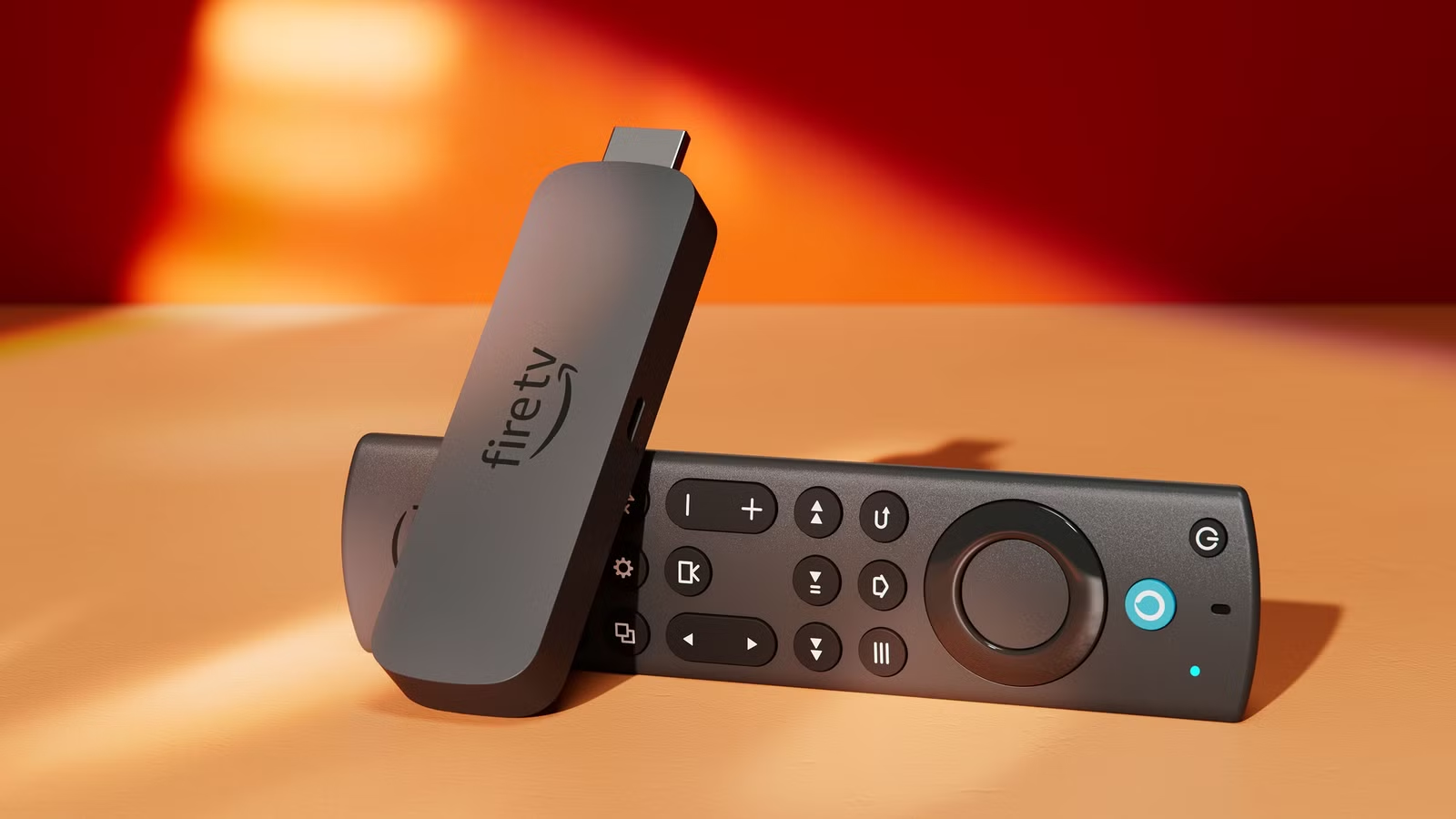
This sleek remote comes with essential controls for navigation, volume, voice search, and app shortcuts, making it one of the easiest smart TV remotes to use. Its intuitive design ensures that anyone—tech-savvy or not—can access their favorite shows and apps with just a few clicks.
Main Features of the Firestick Remote
The remote’s design has evolved over the years, but some features remain consistent. Here are the key highlights of the latest models:
1. Voice Control with Alexa
The standout feature is hands-free voice control. With a simple press of the microphone button, you can say commands like:
- “Play Stranger Things.”
- “Open Netflix.”
- “Show me action movies.”
Alexa integration allows you to control playback, adjust volume, and even check the weather—without typing or scrolling.
2. App Shortcuts
Recent Firestick remotes include dedicated shortcut buttons for popular apps like Prime Video, Netflix, Disney+, and Hulu. It saves time and makes navigation effortless.
3. TV Controls
Most Firestick remotes now include volume, power, and mute buttons, allowing you to control both your TV and Firestick without juggling multiple remotes.
4. Bluetooth and Infrared Combination
While the Firestick remote connects to the stick via Bluetooth, it also uses infrared for TV control functions. This dual system ensures compatibility with almost any modern TV.
How to Pair the Firestick Remote
Setting up or re-pairing your Firestick remote is straightforward:
- Plug your Firestick into your TV and power it on.
- Hold the Home button for 10 seconds until the LED light flashes.
- The remote should automatically pair with the device.
If it doesn’t connect right away, restart your Firestick by unplugging it for a few seconds and trying again.
Troubleshooting Common Firestick Remote Problems
Even though the Firestick remote is reliable, occasional issues can occur. Here are the most common problems and quick fixes.
1. Remote Not Working at All
- Replace the batteries. Firestick remotes are battery-sensitive and drain faster with frequent use.
- Make sure you’re within 30 feet of the Firestick.
- Hold Home for 10 seconds to reconnect the remote manually.
2. Remote Not Controlling TV Volume
- Go to Settings > Equipment Control > Manage Equipment > TV.
- Reconfigure your TV’s brand and remote settings.
- Restart both the Firestick and your TV if the problem continues.
3. Voice Control Not Responding
- Ensure you’re connected to Wi-Fi. Alexa needs internet access.
- Check for updates in Settings > My Fire TV > About > Check for Updates.
- Hold the microphone button until you hear the Alexa tone before speaking.
4. Lagging or Unresponsive Buttons
- Try removing the batteries and waiting 30 seconds.
- Clean the remote’s buttons with a dry cloth.
- Reset the remote by pressing Back + Menu + Left Navigation together for 15 seconds.
Resetting Your Firestick Remote
If nothing seems to work, a full reset might solve it.
To reset the Firestick remote:
- Unplug your Firestick from the power source.
- Hold Left + Menu + Back for 10 seconds.
- Release the buttons, then remove the batteries.
- Plug your Firestick back in and wait for the home screen.
- Reinsert the batteries and press Home to pair again.
This process refreshes the connection and clears any stored errors.
Different Types of Firestick Remotes
Amazon offers several versions of its Firestick remote, depending on the Fire TV model. Here’s a quick overview:
1. Basic Edition Remote
This version doesn’t include Alexa or TV controls. It’s simple, affordable, and perfect for older Firesticks.
2. Alexa Voice Remote (2nd Gen)
Introduced in 2018, this remote added power, volume, and mute buttons, allowing control of most TVs.
3. Alexa Voice Remote (3rd Gen)
The newest version includes four app shortcut buttons and improved Bluetooth range, plus compatibility with soundbars and AV receivers.
Each remote works with all Fire TV devices, though older models may need manual pairing updates.
Using Your Smartphone as a Firestick Remote
Lost your remote? No problem. Amazon offers a free solution through the Fire TV app, available for iOS and Android.
Once installed:
- Open the Fire TV app and log in to your Amazon account.
- Connect your phone to the same Wi-Fi as your Firestick.
- Select your device, then use the app’s touch controls or keyboard to navigate.
The app also includes voice control and fast text entry—great for searching apps or titles.
Tips to Extend Battery Life
The Firestick remote is known for draining batteries quickly, but with a few smart habits, you can make them last longer:
- Use high-quality alkaline batteries.
- Turn off the TV when not in use to reduce remote activity.
- Avoid holding down buttons unnecessarily.
- Store the remote away from direct sunlight or heat.
Replacing batteries before they fully die also helps maintain Bluetooth stability.
Alternatives and Upgrades
Some users prefer third-party remotes with added features like backlighting or universal control. Brands like SofaBaton and Logitech Harmony offer premium remotes that can control multiple devices, including Fire TV.
If you want a hands-free experience, consider the Fire TV Cube, which allows full Alexa voice control without needing to touch a remote at all.
Why the Firestick Remote Stands Out
The Firestick remote’s simplicity is its greatest strength. While other streaming remotes pack dozens of buttons, Amazon focused on minimalism and smart functionality. With Alexa integration, quick app access, and multi-device control, it turns your entertainment setup into a seamless experience.
It’s also a reminder that smart technology doesn’t have to be complicated—sometimes, fewer buttons lead to better usability.
Conclusion
The Firestick remote is more than a controller—it’s the key to an effortless streaming experience. Whether you’re binge-watching your favorite shows or discovering new apps, it connects you to entertainment with just a few clicks or simple voice commands.
With easy setup, smart features, and versatile control options, the Firestick remote continues to be one of the best innovations in home entertainment.
If you ever lose yours or face pairing issues, the fixes are quick, and the app alternative keeps you covered. With this guide, you can make the most of your Firestick remote and enjoy smooth, stress-free streaming anytime.